How to show Flair on product pages
On this page
This guide shows how to add Flair badges and banners to your product pages.
Before you start
- Make sure Flair is enabled in your theme
- Duplicate your theme so you can safely make changes
To learn more, see How to edit your Shopify theme.
Add Flair using app blocks (recommended)
Most Shopify themes support app blocks on product pages, especially modern themes. New to app blocks? Check out our app block guide.
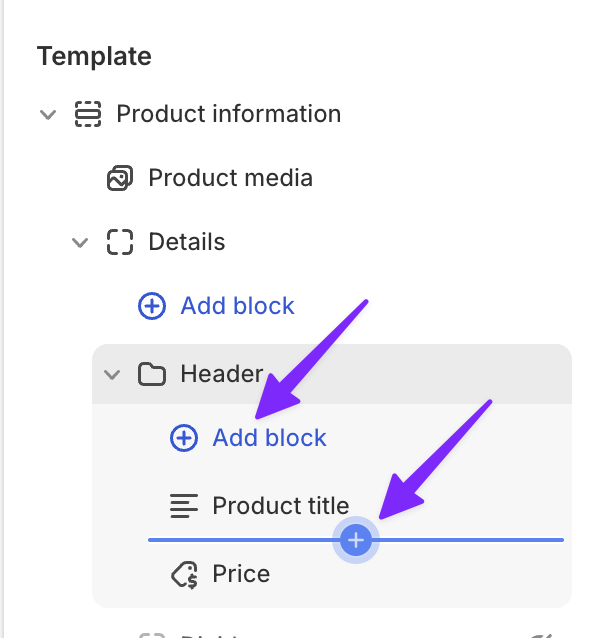
- Open the theme editor, navigate to a product page, and click Add block (or +) where you want Flair to appear.
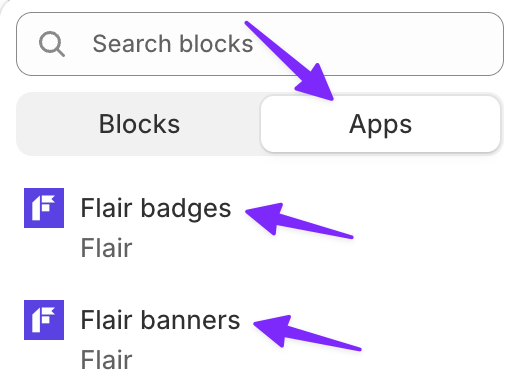
- Under Apps, choose Flair badges or Flair banners.
- Drag the block if needed, then click Save.
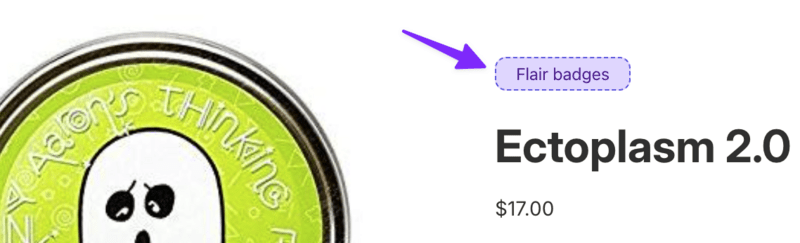
In the theme editor, matching Flair badges or banners appear in the block. If none match yet, you'll see a labeled placeholder like the one below.
If your theme doesn't support app blocks on product pages, use the manual method below.
Add Flair manually
This section uses badges as the example, but the same approach works for banners using the <flair-banners> element.
Find the correct template file
Open the Shopify theme code editor. Look for your product page template. The most common files:
snippets/product.liquidsnippets/product-info.liquidsnippets/product-template.liquidsections/main-product.liquidsections/product-template.liquid
See our theme-specific instructions for popular themes.
Insert the Flair code snippet
Search the file for </h1>. This is where the product title ends and is the most common anchor point. Add the following tag right after it:
<flair-badges product-id="{{ product.id }}"></flair-badges>Save and test
Click Save. Then visit a product page on your store to verify the badges are displaying correctly.
Looking for Gen 2 instructions? See How to show Flair on Gen 2.
Related how-tos
Related features
Theme-specific instructions
The table below lists the template file and installation location for popular Shopify themes. Find your theme to see exactly which file to edit and where to add the Flair code.
| Theme | File | Notes |
|---|---|---|
| Atlantic | snippets/product.liquid | Find the line containing </h1> and add the Flair code after it. |
| Blockshop | sections/main-product.liquid | Find the line containing </h1> and add the Flair code after it. |
| Boost | sections/main-product.liquid | Find the line containing </h1> and add the Flair code after it. |
| Broadcast | sections/product.liquid | Find the line containing render 'product-title' and add the Flair code after it. |
| Brooklyn | sections/main-product.liquid | Find the line containing </h1> and add the Flair code after it. |
| Canopy | sections/main-product.liquid | Find the line containing </h1> and add the Flair code after it. |
| Colorblock | sections/main-product.liquid | Find the line containing </h1> and add the Flair code after it. |
| Craft | sections/main-product.liquid | Find the line containing </h1> and add the Flair code after it. |
| Crave | sections/main-product.liquid | Find the line containing </h1> and add the Flair code after it. |
| Dawn | sections/main-product.liquid | Find the line containing </h1> and add the Flair code after it. |
| Debut | sections/product-template.liquid | Find the line containing </h1> and add the Flair code after it. |
| District | sections/main-product.liquid | Find the line containing </h1> and add the Flair code after it. |
| Ella | snippets/product-title.liquid | Add the Flair code at the end of the file. |
| Empire | snippets/product.liquid | Find the line containing {% when 'vendor' %} and add the Flair code before it. |
| Envy | sections/main-product.liquid | Find the line containing </h1> and add the Flair code after it. |
| Expanse | snippets/block-title.liquid | Find the line containing </h1> and add the Flair code after it. |
| Fashionopolism | sections/product-template.liquid | Find the line containing </h1> and add the Flair code after it. |
| Flex | snippets/product.liquid | Find the line containing </h1> and add the Flair code after it. |
| Flow | sections/template--product.liquid | Find the line containing </h1> and add the Flair code after it. |
| Focal | snippets/product-info.liquid | Find the line containing </h1> and add the Flair code after it. |
| Grid | snippets/product-form-content.liquid | Find the line containing </h1> and add the Flair code after it. |
| Icon | sections/main-product.liquid | Find the line containing {% if show_vendor %} and add the Flair code before it. |
| Impact | snippets/product-info.liquid | Find the line containing </h1> and add the Flair code after it. |
| Impulse | snippets/product-template.liquid | Find the line containing </h1> and add the Flair code after it. |
| Minimal | sections/product-template.liquid | Find the line containing </h1> and add the Flair code after it. |
| Motion | snippets/product-template.liquid | Find the line containing </h1> and add the Flair code after it. |
| Mr Parker | snippets/product-title.liquid | Find the line containing </h1> and add the Flair code after it. |
| Origin | sections/main-product.liquid | Find the line containing </h1> and add the Flair code after it. |
| Pipeline | snippets/product-title.liquid | Find the line containing </h1> and add the Flair code after it. |
| Prestige | snippets/product-info.liquid | Find the line containing </h1> and add the Flair code after it. |
| Publisher | sections/main-product.liquid | Find the line containing </h1> and add the Flair code after it. |
| Reformation | snippets/product-information.liquid | Find the line containing </h1> and add the Flair code after it. |
| Refresh | sections/main-product.liquid | Find the line containing </h1> and add the Flair code after it. |
| Responsive | sections/product-template.liquid | Find the line containing </h1> and add the Flair code after it. |
| Retina | snippets/product.liquid | Find the line containing class="product__title" and add the Flair code before it. |
| Ride | sections/main-product.liquid | Find the line containing </h1> and add the Flair code after it. |
| Sense | sections/main-product.liquid | Find the line containing </h1> and add the Flair code after it. |
| Showcase | sections/main-product.liquid | Find the line containing {%- when 'title' -%} and add the Flair code after it. |
| ShowTime | sections/s_product.liquid | Find the line containing </h1> and add the Flair code after it. |
| Spotlight | sections/main-product.liquid | Find the line containing </h1> and add the Flair code after it. |
| Streamline | snippets/product-template.liquid | Find the line containing </h1> and add the Flair code after it. |
| Studio | sections/main-product.liquid | Find the line containing </h1> and add the Flair code after it. |
| Superstore | snippets/product.liquid | Find the line containing </h1> and add the Flair code after it. |
| Supply | sections/product-template.liquid | Find the line containing </h1> and add the Flair code after it. |
| Symmetry | sections/main-product.liquid | Find the line containing class="title-row" and add the Flair code before it. |
| Taste | sections/main-product.liquid | Find the line containing </h1> and add the Flair code after it. |
| Testament | sections/main-product.liquid | Find the line containing </h1> and add the Flair code after it. |
| Trade | sections/main-product.liquid | Find the line containing </h1> and add the Flair code after it. |
| Turbo | snippets/product.liquid | Find the line containing </h1> and add the Flair code after it. |
| Venture | sections/product-template.liquid | Find the line containing </h1> and add the Flair code after it. |
| Venue | sections/main-product.liquid | Find the line containing </h1> and add the Flair code after it. |
| Warehouse | snippets/product-meta.liquid | Find the line containing </h1> and add the Flair code after it. |
| Wokiee | snippets/product_page_1_description.liquid | Find the line containing </h1> and add the Flair code after it. |