How to Add and Customize Product Labels & Badges on Shopify
Want to get more traction with your Shopify store? You're competing against thousands of other shops, so you need conversion-boosting tactics that actually move the needle. Product labels (also called badges or stickers) are one of the simplest ways to catch a shopper's eye and nudge them into buying.
But how do product labels actually work, and how do you get them onto your Shopify store?
This guide walks through why product badges are worth your time, then shows you three ways to add them, from a quick copy-paste of Liquid code through to using an app. We'll also flag when each approach makes sense so you're not over-engineering a "Sale" sticker.
What are product labels and badges?

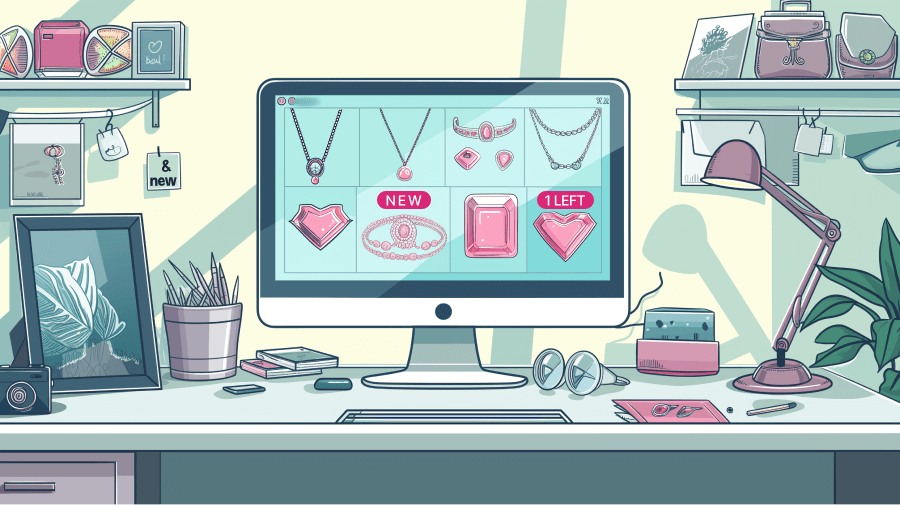
Product badges are small visual cues on your Shopify home page, collection pages, product pages, and upsell offers. They add a pop of color and a reason to pay attention, whether that's a bright red "Clearance" flag or an "Only three pairs left" sticker on your fastest-moving products.
You can place product labels below the product title, on product images, next to the price, or pretty much anywhere else. The rule of thumb is simple: put them where shoppers can't miss them.
Why add product labels to your Shopify store?
You can have the best product pages on the internet and still see flat sales. Badges fill the gap because they:
- Highlight features: Product badges sell the thing about each product that makes it worth buying. Because you control the look, they double up as a branding tool.
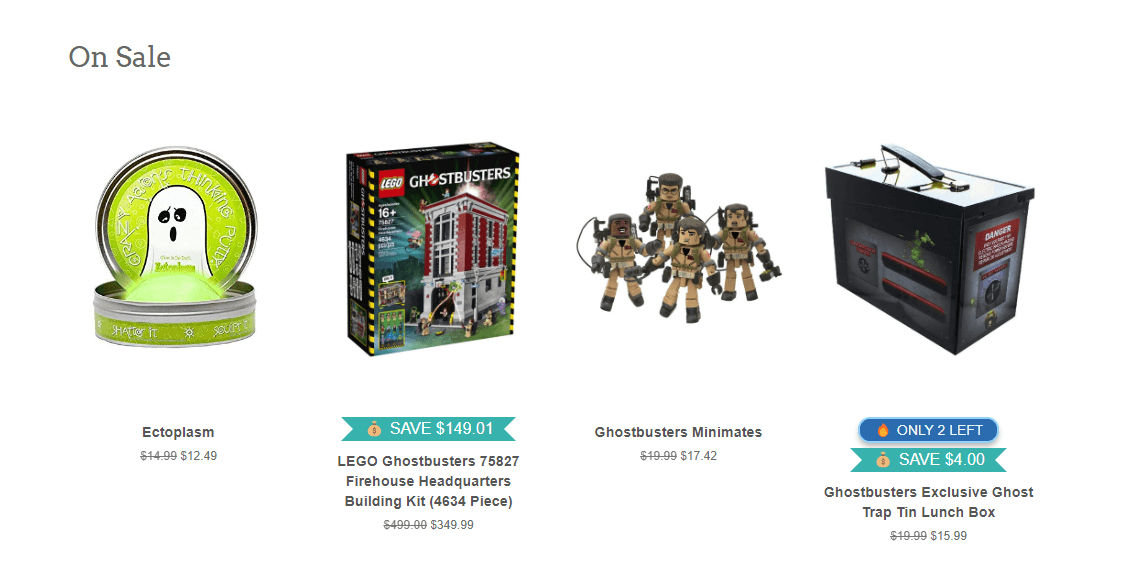
- Create urgency and increase conversions: Scarcity drives action. An "Only two left!" label turns a "maybe later" shopper into a "buy now" one. Out-of-stock, limited-run, and flash-sale labels are all quick urgency wins that lift conversion rate.
- Promote sales and discounts: A visible "20% off" badge tells shoppers they're getting a deal, and no one likes missing one. It's also the single easiest way to give your compare-at pricing some teeth, since the strikethrough price on its own rarely does the heavy lifting.
Worth noting: product badges sit alongside trust badges in a healthy Shopify store. Product badges push specific products; trust badges push the store as a whole. You want both, doing different jobs.
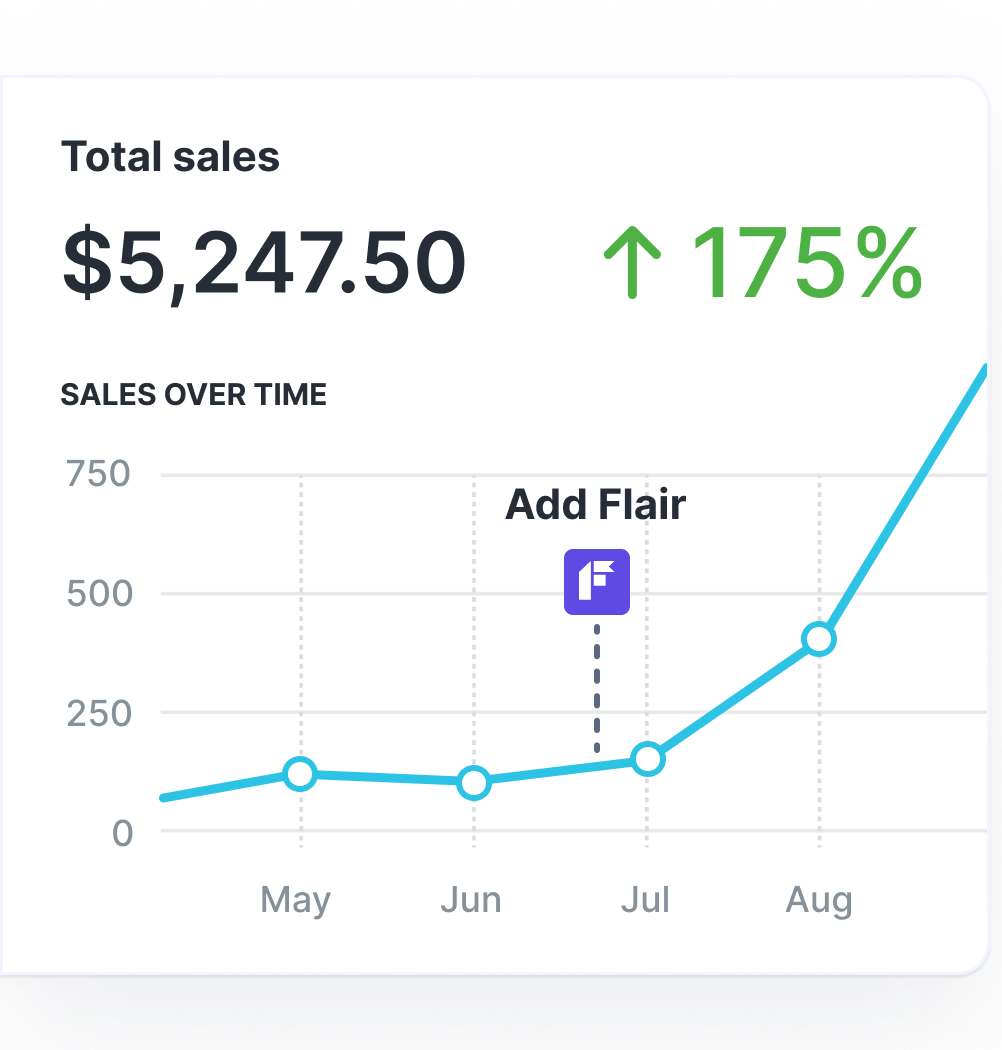
Grow Your Shopify Sales by over 175% with Flair
-
Increase sales using product badges and sales banners
-
Maximize conversions with scarcity, urgency and countdown timers
-
Automate promotions with targeted rules and scheduling
How to add product badges to your Shopify store
There are three ways to get badges onto a Shopify store, and the right one depends on how comfortable you are with theme code and how much customization you actually need.
Quick decision guide:
- Want a one-off badge and happy in code? Edit the theme directly (option 1).
- Want custom design work and zero DIY? Hire a Shopify Expert (option 2).
- Want to run ongoing promotions, schedule sales, trigger badges from inventory or tags, and not touch code? Use an app (option 3). This is what most stores end up doing.
1. Manually edit your Shopify theme code
Your Shopify store comes with a theme you can edit directly. If you can write Liquid (Shopify's templating language), you can build your own product stickers from scratch. It's the cheapest option, but it does mean getting hands-on with code.
Say you want to flag a few products as editorial picks with a "Staff Pick" badge like this:
You can add a product tag of Staff Pick to each pick, then drop a few lines of Liquid into your theme so the badge shows up wherever that tag is present.
Here's how that looks on Shopify's popular Dawn theme:
- Go to Shopify Admin > Themes and click Actions > Edit code.
- Open sections/main-product.liquid and add the highlighted lines:
{%- when 'title '%}
  <div class="product__title" {{ block.shopify_attributes }}>
    <h1>{{ product.title | escape }}</h1>
    {% if product.tags contains 'Staff Pick' %}
      <div style="width:fit-content;padding:4px 12px;background:rgb(219,93,153);border-radius:16px;font-size:16px;color:rgb(255,255,255);font-weight:600;letter-spacing:.1em;">
        STAFF PICK
      </div>
    {% endif %}
Tweak the colors and padding to match your brand. If you spot a shade you like elsewhere online, grab the exact value with a color picker.
A few things to keep in mind before you go down this road:
- This change lives in your active theme only. If you swap themes, the badge goes with it.
- Every new badge type is another chunk of Liquid. Three or four is manageable, twenty is a maintenance headache.
- If you're on an older Vintage theme (not Online Store 2.0), the file structure will be different. Worth double-checking in your theme's sections folder before editing.
- Always duplicate your theme before editing so you have a rollback.
Stuck? The Shopify Community boards are a decent place to troubleshoot theme-specific quirks.
2. Hire a professional
If you don't code, or you'd rather not risk breaking your theme, you can pay someone else to do it. Shopify Experts is the official marketplace for vetted designers and developers.
A common setup: hire a designer for the custom badge artwork, then hire a developer to wire it into your theme for specific products or conditions. You get something bespoke that does exactly what you want.
The trade-off is cost. A one-off job is fine, but every change needs a developer back in the codebase, so it adds up fast. If you expect to tweak things more than a couple of times a year, this stops being the cheap option.
3. Use a specialized Shopify app
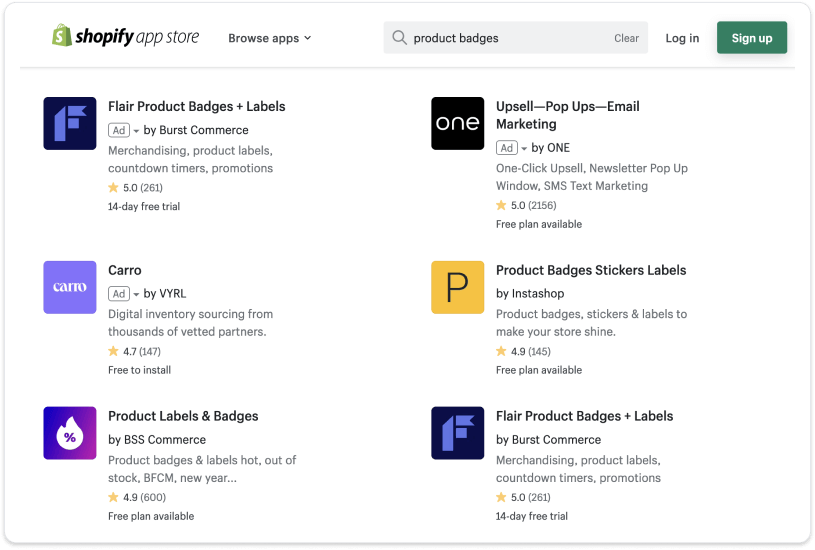
The third route, and the one most stores land on, is a purpose-built Shopify app. No code, no developer, and you get proper promotion features like scheduling, targeting rules, and dynamic text out of the box.
With Flair, for example, the setup is three steps:
- Install Flair and enable the app embed in your theme. No code required.
- Create a badge in the Flair dashboard. Enter the text, pick a shape (ribbon, round, square, arrow), and set the color.
- Add a display rule so the badge only shows on the right products. That could be a product tag (like Staff Pick), a collection, a sale price, low inventory, or any other display rule.
Full walkthroughs for common setups (best sellers, flash sales, clearance, new arrivals, VIP-only, BOGO) are in the Flair help docs. If you've already decided on Flair, start there.
An app approach gives you a few things the manual route doesn't: you can schedule sales to go live at a specific date and time, trigger badges automatically from inventory or price conditions, and layer in banners and countdown timers for bigger promos like BFCM.
Choosing the right product badge app for Shopify
There are dozens of Shopify apps that can add product labels and badges, and the right pick depends on what you're actually trying to do. Some focus purely on trust badges and payment icons. Others are built for scarcity messaging, flash sales, or fully automated promotions that run off your product tags and stock levels.
If you want a side-by-side comparison with pricing, ratings, and key features for every serious option on the App Store, we've reviewed and ranked them all here:
That guide covers free options (like Trust Badges Bear and Lably), budget picks (Easy:Stock, Elegantsy), and full-featured promotion tools (Flair, Selly, ShineTrust), so you can match the app to the use case.
Simplify your Shopify labels and badges
Shopify is competitive, so you need every lever you can pull. Product badges are one of the cheapest, fastest ones to get live. They create urgency, highlight your best stuff, and give shoppers a nudge at the moment they're weighing up whether to buy.
If you want to skip the code and just get badges, banners, and scheduled promotions running in a few clicks, thousands of Shopify stores use Flair to do exactly that. Try Flair free
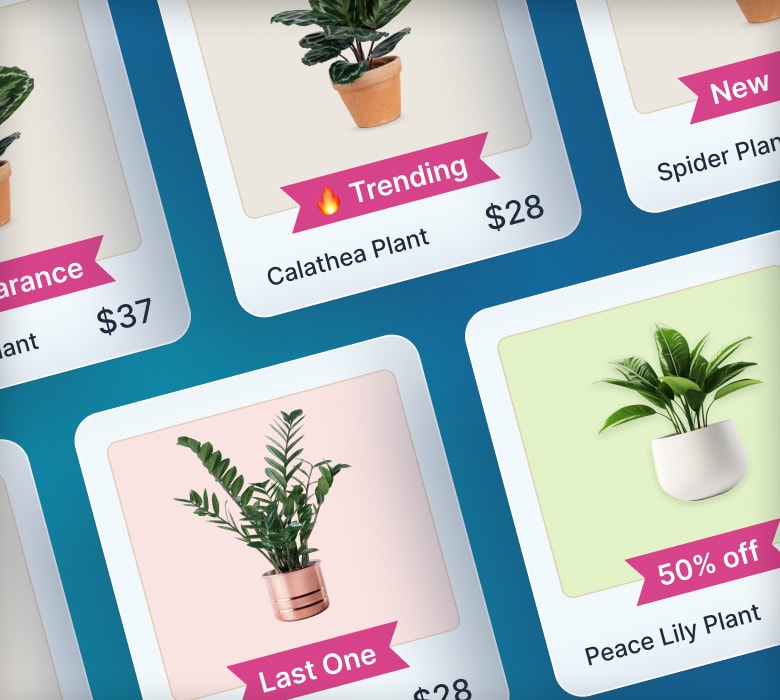
Learn How to Double (2X) Your Shopify Sales with Product Labels
-
Boost sales by highlighting key features with product badges
-
Increase conversions by promoting scarcity, urgency and social proof
-
Sell more with targeted promotions to increase average order sizes